Service Event Templates & Schedules
Service Event Templates
In order to simplify the process of creating Service Events, QATrack+ allows you to define Service Event Templates that can be used to autopopulate many of the fields in the Service Event form including:
Service Type
Service Area
Problem Description
Work Description
Is Review Required?
Return To Service Tests / Test List Cycles
This allows you to create say a “Annual PM” service event template which predefines the work done and return to service work required after the PM.
To create a new Service Event Template, go to the admin area and select the Service Event Templates link in the Service Log section then click the Add Service Event Template button.
On the Add service event template page give your template a name (e.g. Annual PM) and then fill out the fields below to indicate how the Service Event fields should be populated when a user selects this template.
All of the fields are optional. Note that a Service Event Template will only appear for a unit if the unit matches the template’s selected Service Area (or if the Service Area is left blank). When a template is applied to a unit, any configured Return to Service Test Lists (Cycles) that are actively assigned to that unit will be automatically populated on the Service Event form (any selected test lists not assigned to the unit will simply be omitted). This allows you to create generic, multi-unit templates that reference unit-specific return to service test lists.
Once you have filled out the fields, click Save.
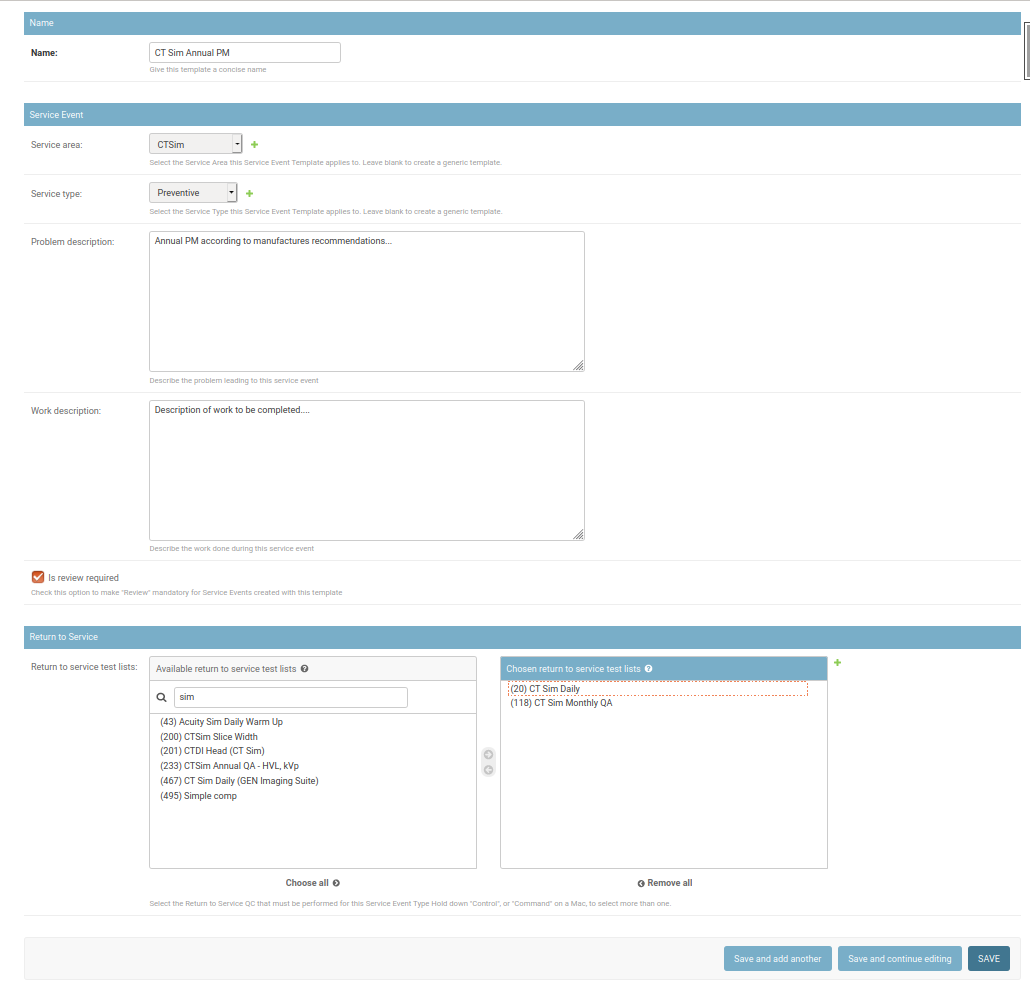
Adding a new Service Event Template
For information on using a Service Event Template see the Service Log Users Guide.
Service Event Schedules
Similar to the concept of assigning Test Lists to Units, QATrack+ allows you to assign Service Event Templates (described above) to Units to be performed with a given frequency.
To assign a Service Event Template to a Unit, go to the admin area and select the Assign Service Event Templates to Units link in the Service Log section then click the Add Service Event Schedule button.
On the Add service event schedule page, select the Unit Service Area you want to assign your template to (this will autopopulate the Unit field).
Unit Service Area
The Unit Service Area that you want to assign the test list to.
Frequency
The Frequency with which you want the template to be performed (e.g. Daily, Monthly, Yearly etc).
Optionally, you can leave the frequency blank and the template will be assigned to be performed on an ad-hoc basis.
Due Date & Auto Schedule
Here you can manually set the initial due date/time for a test list on a unit. You can also leave this blank if you like and the test list will show up as being Not Due.
If you leave Auto Schedule checked, the due date will automatically be updated according to the assigned frequency after the test list is completed on a unit.
Assigned To
The group of users that is generally responsible for performing the service. Note that the Assigned To property is used for display only and users not part of the Assigned To group will still be able to see and perform the template.
Visible To
Select which user groups this service event template should be visible to by moving groups from the Chosen visible to to the Available visible to box.
Active
If this checkbox is unchecked, the template will not appear in any listings on the main site. This should be used to disable templates are no longer performed on a unit.
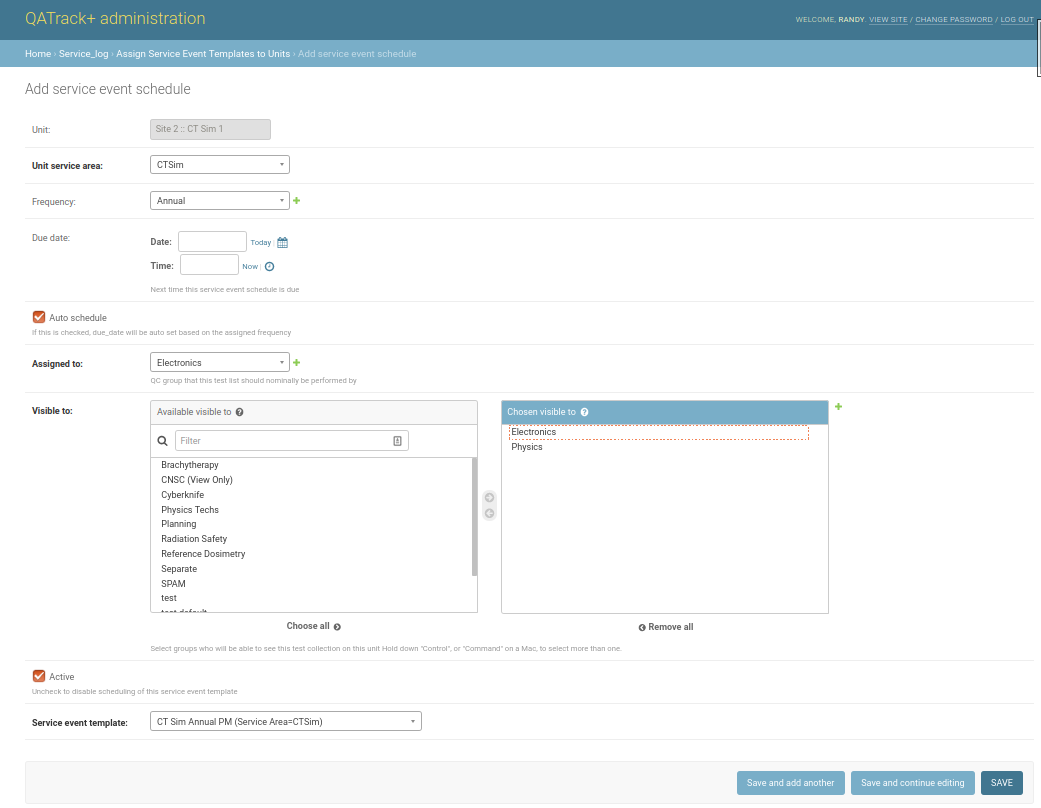
Adding a new Service Event Schedule
For more information on performing Service Event Schedules, see the Service Log Users Guide.