Upgrading an existing Windows v3.X.Y installation to v4.0.0
This guide will walk you through upgrading your existing v3.X.Y installation to v4.0.0. If you currently have an older version of QATrack+, you first need to consult the archived documentation to upgrade to 3.1 before carrying out these instructions.
Take a snapshot
If your QATrack+ server exists on a virtual machine, now would be a great time to take a snapshot of your VM in case you need to restore it later! Consult with your IT department on how to do this.
Backing up your database
It is important you back up your database before attempting to upgrade. In order to generate a backup open SQL Server Management Studio (SSMS), right click on your database then select Tasks -> Back Up..
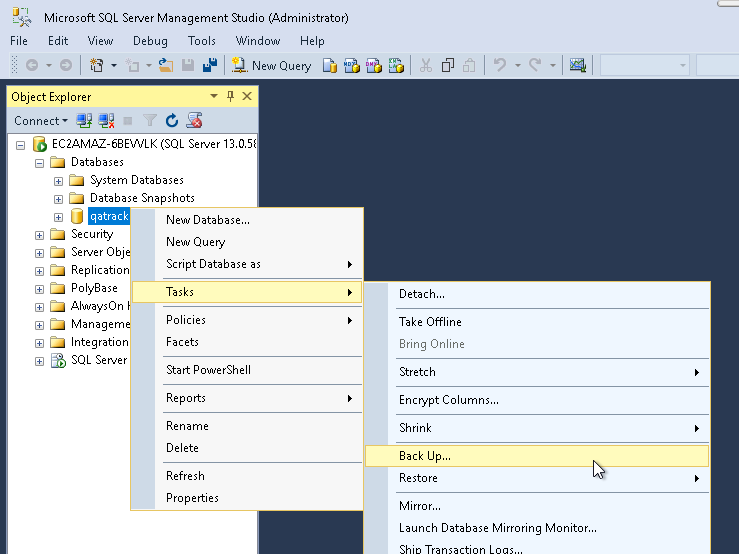
Backup Menu Item
Select Copy-only backup and make sure the Backup component is set to Database. Take note of where the backup is being stored and then click OK:
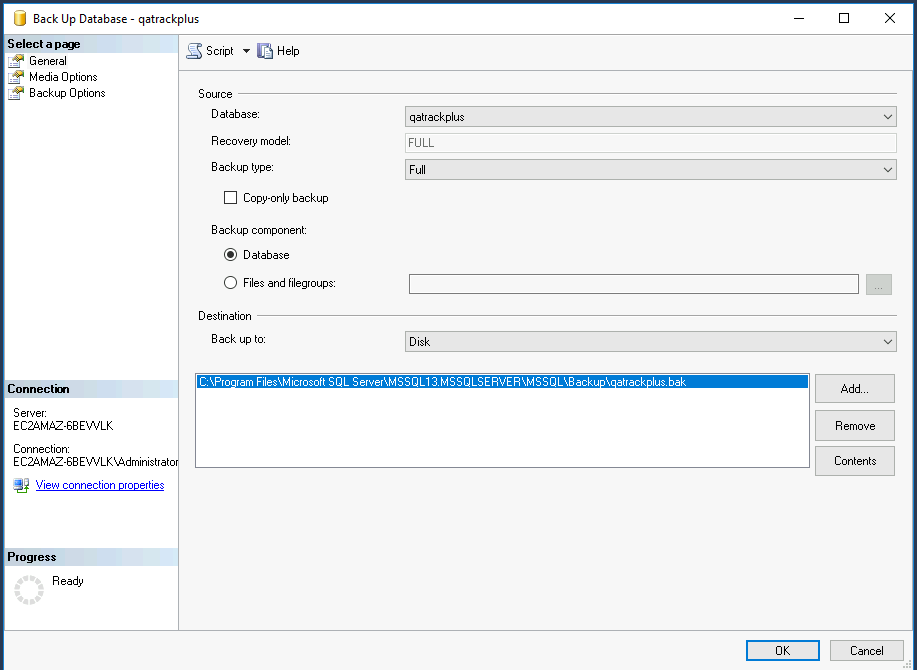
Backup Dialog
Backing up your Media folder
It is also crucial to back up your uploaded media files before upgrading. Navigate to your QATrack+ installation directory (e.g., C:\deploy\qatrackplus\qatrack\media) and create a copy or zip archive of the entire media folder. Save this backup in a safe location.
Backing up your local_settings.py
Your configuration, including database credentials and site-specific settings, is stored in local_settings.py. Navigate to C:\deploy\qatrackplus\qatrack\ and create a backup copy of local_settings.py before proceeding with the upgrade.
Stopping Background Services
Before changing branches or creating a new environment, you must stop your background task runner to prevent tasks from executing during the upgrade. You must also stop and remove the old CherryPy service using your existing Python environment. Open a PowerShell window and run:
# Stop background task runner
# Note: Replace "QATrack+ Django Q Cluster" if you used a different name for your scheduled task
Stop-ScheduledTask -TaskName "QATrack+ Django Q Cluster"

# Stop and remove CherryPy service
cd C:\deploy
.\venvs\qatrack31\Scripts\Activate.ps1
cd qatrackplus
python QATrack31CherryPyService.py stop
python QATrack31CherryPyService.py remove
Checking out version 4.0.0
First we must check out the code for version 4.0.0 in a PowerShell window:
cd C:\deploy\qatrackplus
git fetch origin
git checkout v4.0.0
Updating our Python environment
For version 4.0.0, QATrack+ now uses the uv package manager, which will create a new virtual environment inside the qatrackplus directory. Your old venvs/qatrack31 directory is no longer needed.
First, install uv and create the new environment:
cd C:\deploy\qatrackplus
pip install uv
uv sync --extra win --extra mssql
Next, activate your new virtual environment:
.\.venv\Scripts\Activate.ps1
Your command prompt should now be prefixed with (.venv).
Performing the migration
We can now migrate the tables in our database:
python manage.py migrate
and then we need to update all our static media files:
python manage.py collectstatic
Updating and Restarting Windows Services
Because the Python executable path has changed with the move to uv, you must install the new CherryPy service using the new environment.
cp deploy\win\QATrack40CherryPyService.py .
python QATrack40CherryPyService.py --startup=auto install
python QATrack40CherryPyService.py start
You must also update the Windows Task Scheduler. Open the Task Scheduler application, find the QATrack+ Django Q Cluster task, and edit the Action to run the new Python executable located at: C:deployqatrackplus.venvScriptspython.exe.
Finally, restart the scheduled task:
Start-ScheduledTask -TaskName "QATrack+ Django Q Cluster"