Upgrading an existing Windows v3.1 installation to v4.0.0
This guide will walk you through upgrading your existing v3.1 installation to v4.0.0. We understand that if you are not the original installer, this may be a bit daunting. Please reach out to the QATrack+ team for assistance if you have any questions or concerns.
Documented support for upgrading from previous versions of QATrack+ (v0.3.0 and earlier) to v4.0.0 is not available at this time. We would be happy to assist you with upgrading from these older versions, do not hesitate to reach out to the QATrack+ team for assistance, the Google Group and support email are open to all users.
Introductory Notes
There are significant changes to the tooling and dependencies in v4.0.0, please read through this entire guide before attempting to upgrade. If you have any questions or concerns, please reach out to the QATrack+ team for assistance. Some of these changes include:
The Python virtual environment is now managed by the
uvpackage manager, which will handle a lot of the python heavy lifting for you.The old
venvs/qatrack31directory is no longer needed.Manual installations of Python and pip are no longer required.
We are going away from including specific versions in file names for the CherryPy service and scheduled task. The new service is called ‘QATrack+ CherryPy Service’ and the scheduled task is called ‘QATrack+ Django Q Cluster’. This will make it easier to apply future patches.
The Django engine for the database has changed from
sql_server.pyodbctomssql.Multiple languages are now supported, please refer to the default local_settings.py file for guidance on how to configure your installation for multiple languages.
Take a snapshot
If your QATrack+ server exists on a virtual machine, now would be a great time to take a snapshot of your VM in case you need to restore it later! Consult with your IT department on how to do this.
Backing up your database
It is important you back up your database before attempting to upgrade. In order to generate a backup open SQL Server Management Studio (SSMS), right click on your database then select Tasks -> Back Up..
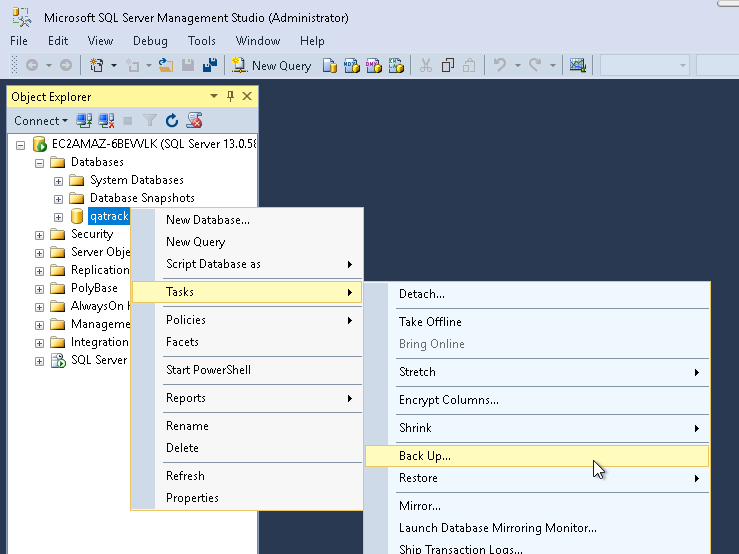
Backup Menu Item
Select Copy-only backup and make sure the Backup component is set to Database. Take note of where the backup is being stored and then click OK:
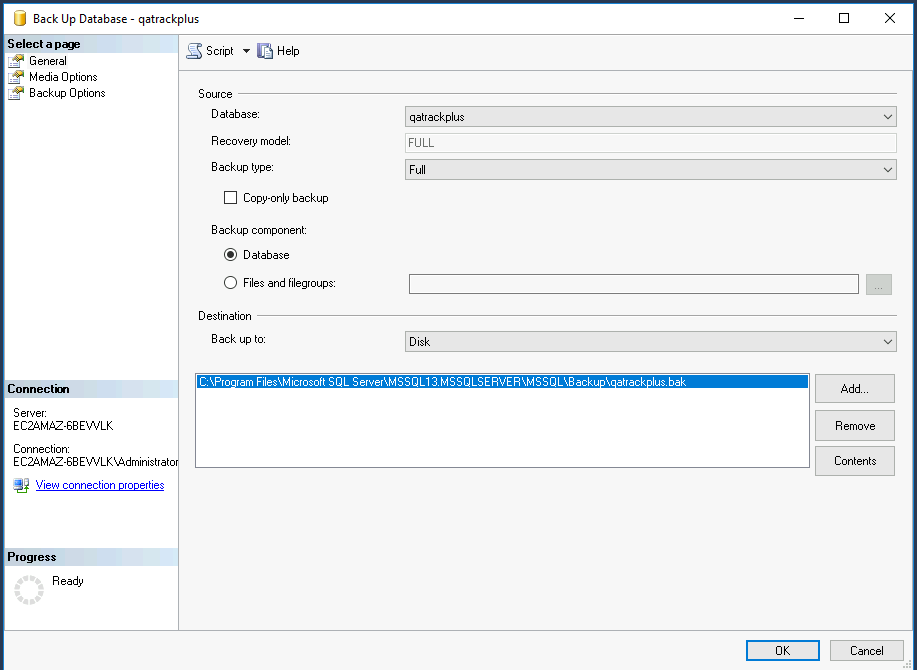
Backup Dialog
Backing up your Media folder
It is also crucial to back up your uploaded media files before upgrading. Navigate to your QATrack+ installation directory (e.g., C:\deploy\qatrackplus\qatrack\media) and create a copy or zip archive of the entire media folder. Save this backup in a safe location.
Backing up your local_settings.py
Your configuration, including database credentials and site-specific settings, is stored in local_settings.py. Navigate to C:\deploy\qatrackplus\qatrack\ and create a backup copy of local_settings.py before proceeding with the upgrade.
Stopping Background Services
Before changing branches or creating a new environment, you must stop your background task runner to prevent tasks from executing during the upgrade. You must also stop and remove the old CherryPy service using your existing Python environment. Open a PowerShell window and run:
# Stop background task runner
# Note: Replace "QATrack+ Django Q Cluster" if you used a different name for your scheduled task
>>  Stop-ScheduledTask -TaskName "QATrack+ Django Q Cluster"
# Stop and remove CherryPy service
>>  cd C:\deploy
>>  .\venvs\qatrack31\Scripts\Activate.ps1
>>  cd qatrackplus
>>  python QATrack31CherryPyService.py stop
>>  python QATrack31CherryPyService.py remove
To verify that the service has been removed, please open the Services application and check that there are no entries with QATrack or CherryPy in the name. If the service is still present, then open a CMD window (not PowerShell) as Administrator and run the following command to remove it:
>> sc delete "QATrack31CherryPyService"
Prerequisites
Managing python dependencies and virtual environments can be a bit tricky on Windows. We have transitioned to using the uv package manager to handle this for us. To install QATrack+ run the following command in a PowerShell terminal with Administrator privileges:
>>  powershell -ExecutionPolicy ByPass -c "irm https://astral.sh/uv/install.ps1 | iex"
>>  uv --version # this should print the version of uv installed, e.g. 0.11.20
Before beginning the installation, ensure the following software is installed on your server:
Google Chrome: Required to generate or schedule PDF reports.
Microsoft Visual C++ Redistributable: The ODBC Driver for SQL Server requires this.
ODBC Driver 17 for SQL Server: Required for QATrack+ to communicate with the database.
SQL Server Management Studio (SSMS): Required for setting up the database.
Git for Windows: Required to check out the QATrack+ source code.
IIS requires the URL Rewrite 2.1 and Application Request Routing 3.0 modules.
For convenience, these installers may be kept in a folder on the server (e.g. C:\deploy\installers) for future reference and re-use.
Checking out version 4.0.0
First we must check out the code for version 4.0.0 in a PowerShell window:
>>  cd C:\deploy\qatrackplus
>>  git fetch origin
>>  git checkout releases/4.0
Side note: Alternate Tag
If you prefer to use a tag instead of a branch, you can check out the v4.0.0 tag instead. We are switching defaults away from tags to branches for ease of patch distribution. Future patches can be applied simply with a git pull command, whereas tags are immutable. To check out the tag, run the following commands in a PowerShell window:
>>  cd C:\deploy\qatrackplus
>>  git fetch origin
>>  git checkout v4.0.0
Updating our Python environment
For version 4.0.0, QATrack+ now uses the uv package manager, which will handle a lot of the python heavy lifting for you. We will create a new virtual environment inside the qatrackplus directory. Your old venvs/qatrack31 directory is no longer needed.
First, delete the old virtual environment, and uninstall all installed python instances. Then we will install uv from the executable and create a new virtual environment. We will use powershell to fetch the installer. If you’d like you can download the latest uv installer directly.
Open a PowerShell window with Administrator privileges and run the following commands:
>> powershell -ExecutionPolicy ByPass -c "irm https://astral.sh/uv/install.ps1 | iex"
Now with a normal PowerShell window, run the following commands to create a new virtual environment and install the required dependencies:
Next, activate your new virtual environment:
>> .\.venv\Scripts\Activate.ps1
Your command prompt should now be prefixed with (qatrackplus) or (.venv).
Updating your local_settings.py
There have been quite a few changes to the local_settings.py file. Depending on when your settings file was first configured it might deviate quite significantly. You will need to update your existing local_settings.py file to match the new format. Please refer to the local_settings.py files in the deploy/ directories for guidance.
Major changes include:
The Django engine for the database has changed from
sql_server.pyodbctomssql.Allowed Hostsis now mandatory for Django 4.2+ and must be set to a list of host names that your QATrack+ server will respond to. Because we are using IIS as a reverse proxy this only has to include the hostname and any CNAMEs or aliases.CSRF_TRUSTED_ORIGINSis now mandatory and must be populates similarly toALLOWED_HOSTS.
Updating the database
We can now upgrade the database schema and static media files to be compatible with the new version of QATrack+.
>>  python manage.py migrate
>>  python manage.py createcachetable
>>  python manage.py collectstatic
If you have issues with the migration, first check
Side note: Migrations
Django migrations are a way of propagating database schema changes (e.g., adding a field to a model) into the database. Running migrations at the appropriate time is a crucial step in upgrading QATrack+ to ensure that the database schema is compatible with the new version of the application.
Further information on Django migrations can be found in the Django documentation.
Side Note: Testing the upgrade
We now have a database, we have configured QATrack+ to use it, and we’ve loaded the default configuration data. Next, we could test that everything is working correctly by running the development server with python manage.py runserver and navigating to http://localhost:8000/ in a browser on the server. You should see a poor approximation of the QATrack+ login page (it won’t look like this once we’re finished!). If you see any errors, check the terminal output for details on what went wrong. If you can log in successfully, then we know our database is configured correctly and we can move on to the next step.
Configuring CherryPy to Serve QATrack+
Next we need to set up a web server to serve QATrack+ and allow users to log in and use it. In order to have QATack+ start when you reboot your server, or restart after a crash, we will run QATrack+ with a CherryPy server installed as a Windows service (running on port 8080, see note below if you need to change the port).
Open a new PowerShell window with Administrator privileges (right click on PowerShell and click “Run as Administrator”) and run the following commands:
>>  cd C:\deploy\qatrackplus
>>  .\.venv\Scripts\Activate.ps1
>>  cp deploy\win\QATrackCherryPyService.py .
>>  python .\.venv\Scripts\pywin32_postinstall.py -install
>>  python QATrackCherryPyService.py --startup=auto install
>>  python QATrackCherryPyService.py start
Open the Windows Services dialog and confirm the QATrack+ CherryPy Service is installed and has a status of Running.
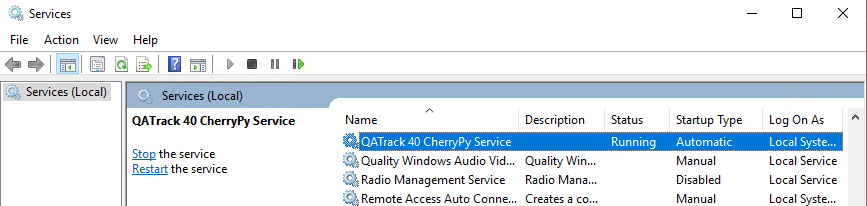
Next open a browser on the server and navigate to http://localhost:8080/ and ensure you see a plain login form there (it won’t look like this once we’re finished!). If not, check the logscherry_py_err.log file for any errors.
Your QATrack+ installation is now installed as a Windows Service running on port 8080 (see note below). You may also wish to configure the service to email you in the event of a crash (see the Recovery tab of the QATrackCherryPyService configuration dialogue).
Note
If you need to run QATrack+ on a different port, edit
C:\\deploy\\qatrackplus\\QATrackCherryPyService.py set the PORT
variable to a different port (e.g. 8008), and run python QATrackCherryPyService.py update to update the service. You will also need to update the URL rewrite rules in IIS to point to the new port.
Setting up IIS
To start open up the Internet Information Services (IIS) application. We are going to use IIS for two purposes: first, it is going to serve all of our static media (css, js and images) and second it is going to act as a reverse proxy to forward the QATrack+ specific requests to CherryPy.
If IIS is not installed, open Server Manager, select Manage -> Add Roles and Features, click Next until you reach Server Roles, check Web Server (IIS), and follow the prompts to install it. The default options are sufficient.
Before configuring IIS, please make sure you have both URL Rewrite 2.1 and Application Request Routing 3.0 IIS modules installed. These can be installed manually from the provided links.
After installing these modules, you will need to close & re-open IIS. Alternatively, the deploy\win\iis_install.ps1 script can automate some of this setup. When testing static access, ensure the IIS server is running.
Enabling Proxy in Application Request Routing
Application Request Routing needs to have the proxy setting enabled. To do this, click on the top level server in the left side panel, and then double click the Application Request Routing icon. In the Actions panel click the Server Proxy Settings and then check Enable proxy at the top. Leave all the other settings the same and click Apply and then Back to ARR Cache.
Enabling Static Content Serving in IIS
IIS is not always set up to serve static content. To enable this, open the Server Manager software, click Manage, then Add Roles and Features then Next, Next. In the Roles widget, select Web Server(IIS)->Web Server->Common HTTP Features and make sure Static Content is selected. If it isn’t, enable that role.
Setting up the site and URL rewrite rules
Once you have Application Request Routing installed and proxies enabled, in the left panel of IIS under Sites, select the default Web Site and click Stop on the right hand side.
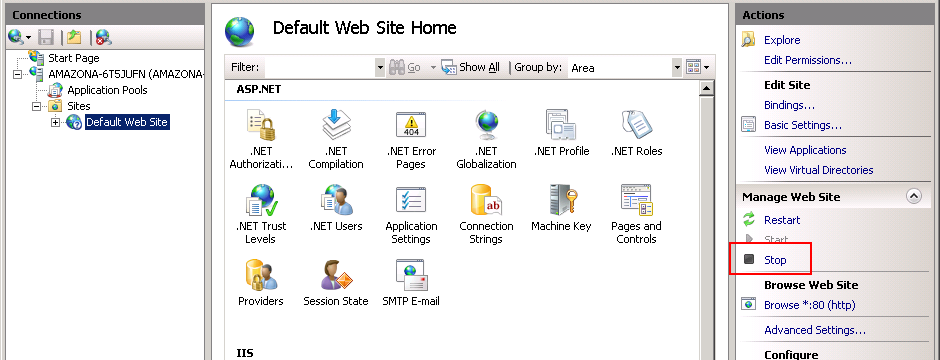
Stop default website
Now right click on Sites and click Add Web Site
Add a new web site
Enter QATrack Static for the Site Name and “C:\deploy\qatrackplus\qatrack\” for the Physical Path then click OK and answer Yes to the warning.
To test that setup worked correctly open a browser on your server and enter the address http://localhost/static/qa/img/tux.png You should see a picture of the Linux penguin.

Next, select the top level server in the Connections pane and then double click URL Rewrite:
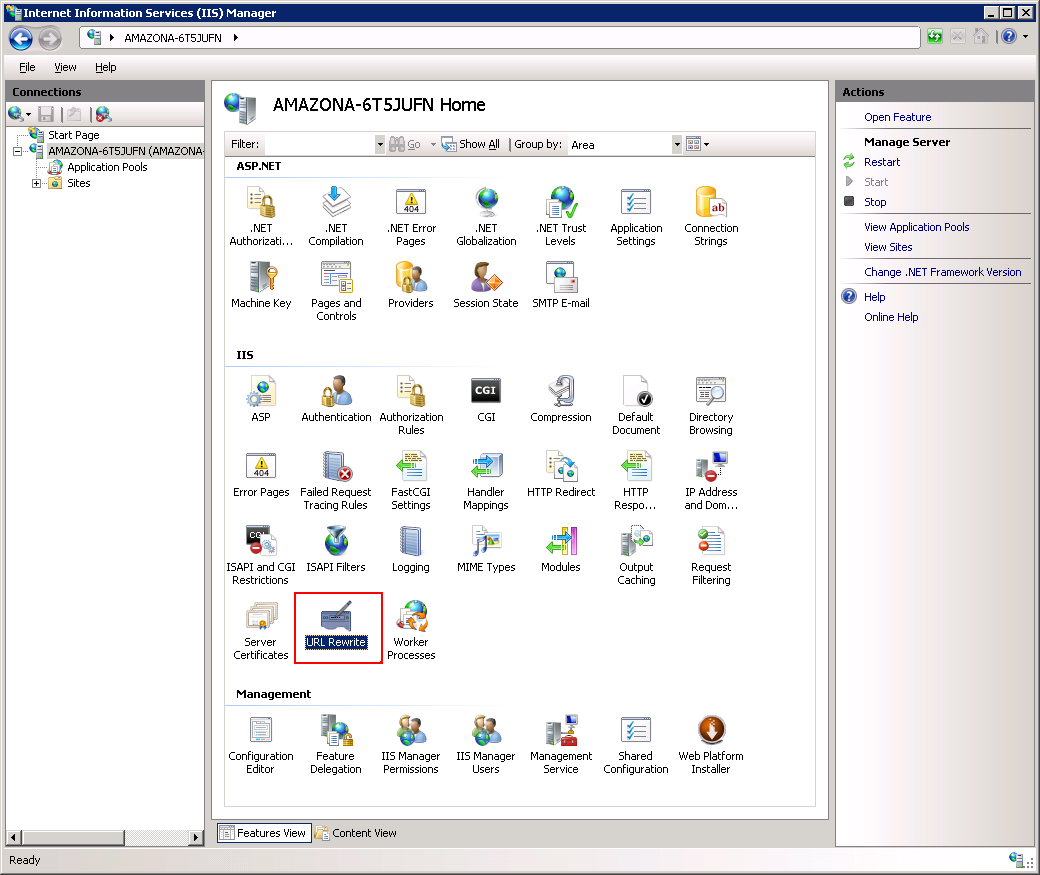
URL Rewrite
In the top right click Add Rule and select Blank Rule.
Give it a name of QATrack Static and enter ^(static|media)/.* for the Pattern field, and select None for the Action type. Make sure Stop processing of subsequent rules is checked.
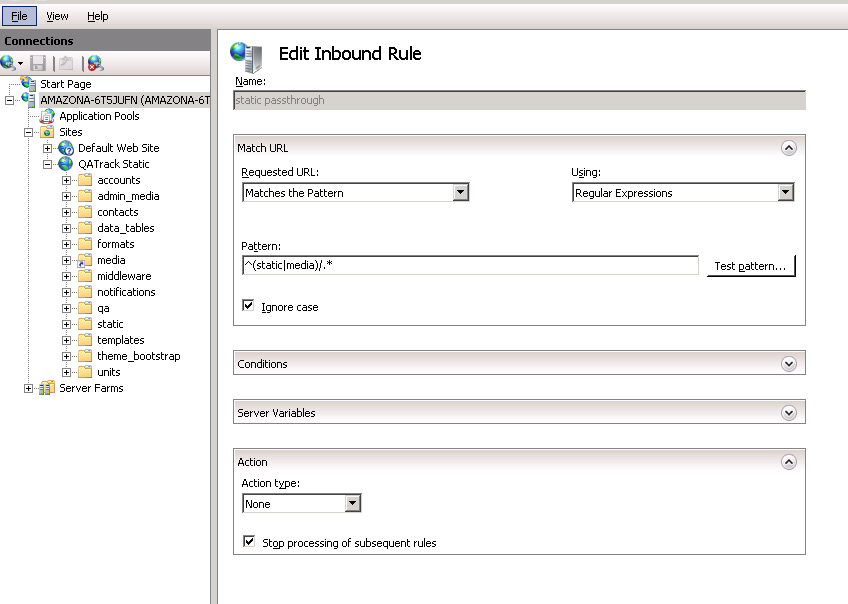
Static URL Rewrite Rule
When finished click Apply, then Back To Rules and then add another blank rule. Give it a name of QATrack Reverse Proxy, enter ^(.*) for the Pattern and http://localhost:8080/{R:1} for the Rewrite URL. In the Server Variables section add a new Server Variable with the Name=HTTP_X_FORWARDED_HOST and the Value=yourservername.com (replace yourservername with whatever your domain is!). Finally, make sure both Append query string and Stop processing of subsequent rules are checked.
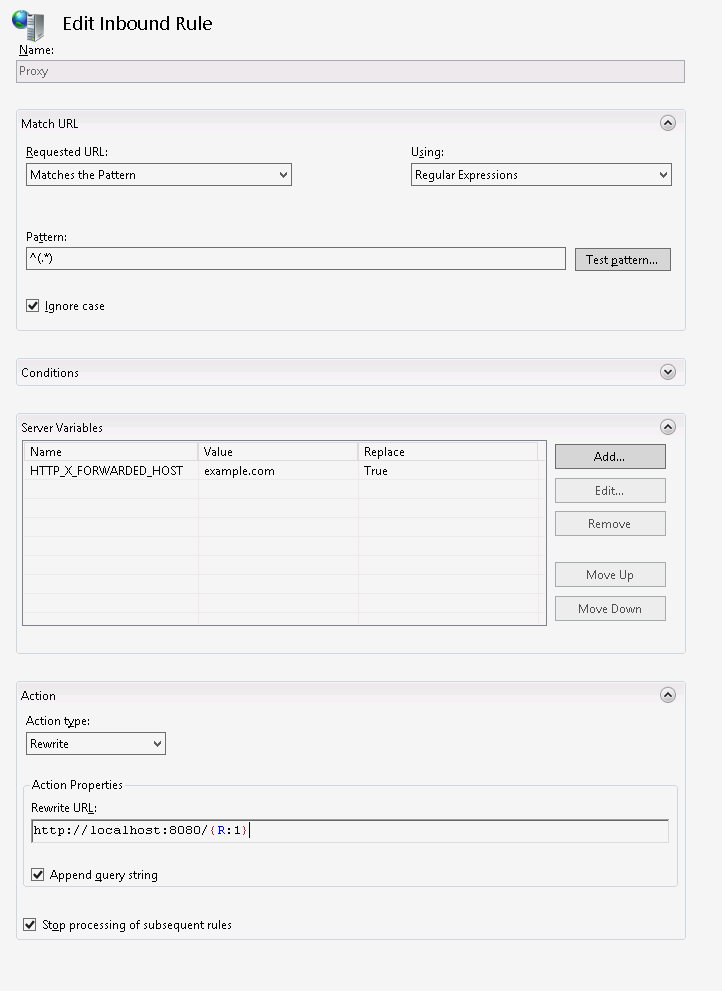
URL Rewrite Reverse Proxy
Your URL rewrites should look like the following (order is important!)

URL Rewrite rules
You should now be able to visit http://localhost/ in a browser on your server and see the QATrack+ login page. Congratulations, you now have a functional QATrack+ setup on your Windows Server!
If you see a “403.14 Forbidden” error, double check you added the URL rewrite rules to the top level server, and not the QATrack Static site.
If you see a “502.3 Bad Gateway” error, double check that your QATrack CherryPy service was installed correctly and is running.
Note
There are many different ways to configure IIS. The method I’ve used above is simple and works well when QATrack+ is the only web service running on a server.
Setting up Django Q
As of version 3.1.0, some features in QATrack+ rely on a separate long running process which looks after periodic and background tasks like sending out scheduled notices and reports. We are going to use Windows Task Scheduler to run the Django Q task processing cluster.
Open the Windows Task Scheduler application and click Create Task. Give the task a name of “QATrack+ Django Q Cluster”. Click the Change User or Group… button and in the Enter the object name to select box put SYSTEM, then click Check Names and OK.
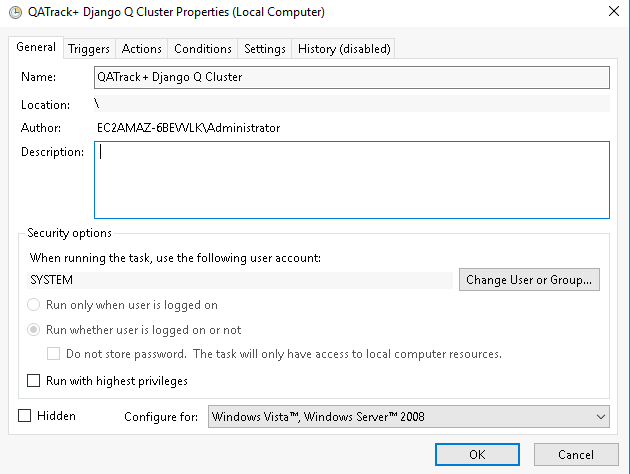
QCluster Task
On the Triggers tab, click New… and in the Begin the task: dropdown select At startup and then click OK.
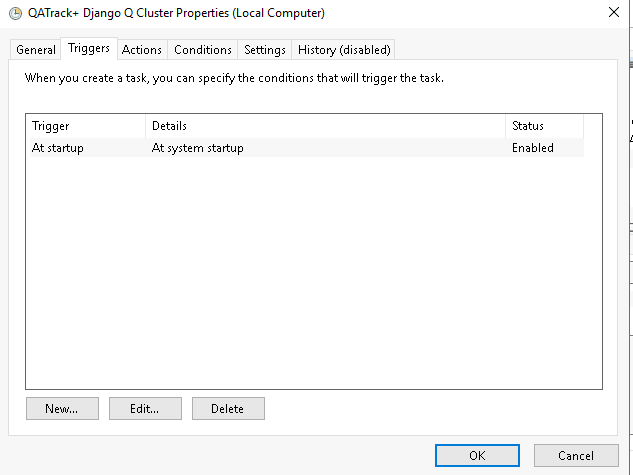
QCluster Trigger
Now go to the Actions tab and click New…. In the Program/script: box enter C:\deploy\qatrackplus\.venv\Scripts\python.exe. In the Add arguments (optional): field enter manage.py qcluster, and in the Start in (optional): field put C:\deploy\qatrackplus (no trailing slash!).
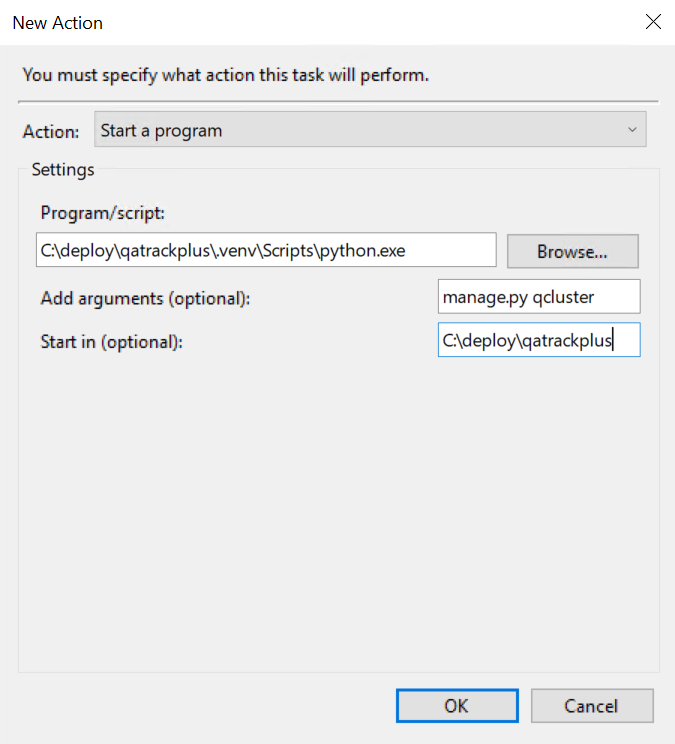
QCluster Action
Click OK, then right click on the task and select Run. Go back to your PowerShell window (or open a new one) and confirm your task cluster is running with python manage.py qmonitor which should show something like:
 Host            Id      State    Pool    TQ       RQ       RC    Up

YOUR-SERVER    e0474f3f  Idle     2       0        0        0     0:05:53

     ORM default     Queued    0    Success   48   Failures       0

                     [Press q to quit]
If the line between Host and ORM default is blank then there is a problem with the Windows Task you created.